Hytale Game Server Setup
🏰 Getting Started: Your Hytale Server
Section titled “🏰 Getting Started: Your Hytale Server”Welcome to your new server! This guide will walk you through managing your Hytale world using our VxPanel Panel.
⚠️ CRITICAL FIRST STEP
Please read Step 2 carefully. Your server requires you to authenticate your game ownership before it will come online.
1. 📧 Accessing Your Control Panel
Section titled “1. 📧 Accessing Your Control Panel”Check your email inbox for a “Server Created” notification. This contains your Panel URL, Username, and Password.
- Navigate to the Panel URL provided in the email.
- Log in with your credentials.
- Click on your server name to open your dashboard.
2. 🔐 REQUIRED: Server Authentication
Section titled “2. 🔐 REQUIRED: Server Authentication”The server will not start fully until you verify that you own a copy of Hytale.
- Navigate to the Console tab.
- Click the green Start button in the top right.
- Watch the console text carefully. The server will pause startup and display an authentication code or a URL (e.g.,
https://hytale.com/auth...).
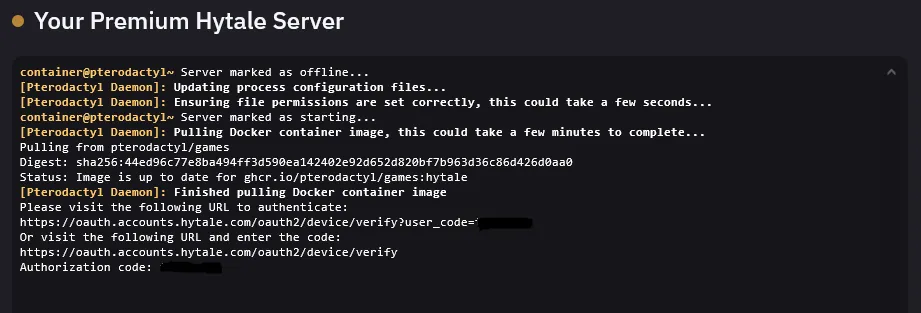
- Copy this link or code and follow the instructions in your browser to log in with your Riot/Hytale account.
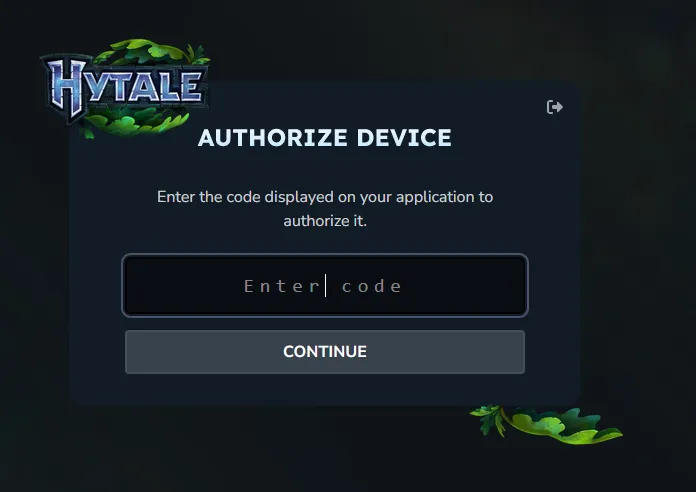
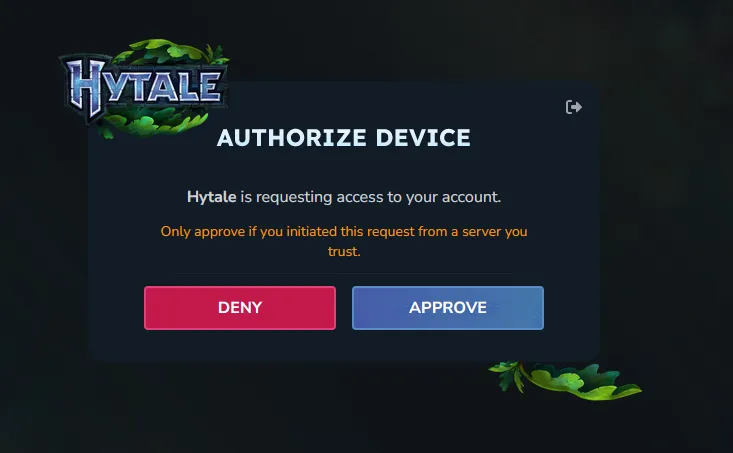
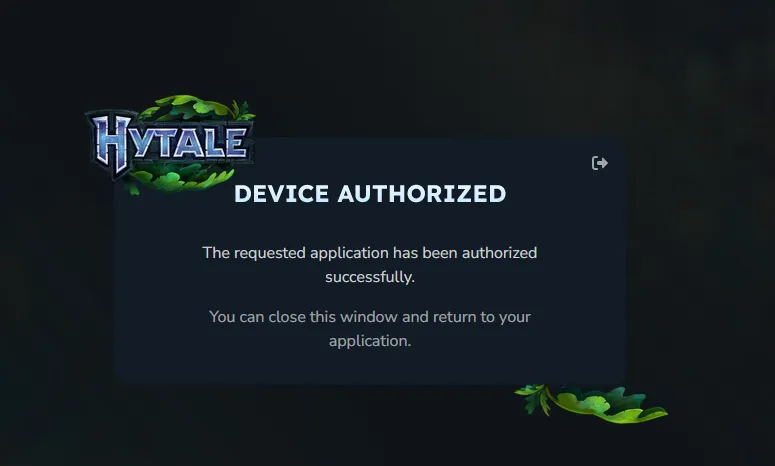
- Once authenticated, the console will confirm success, and the server will finish loading.
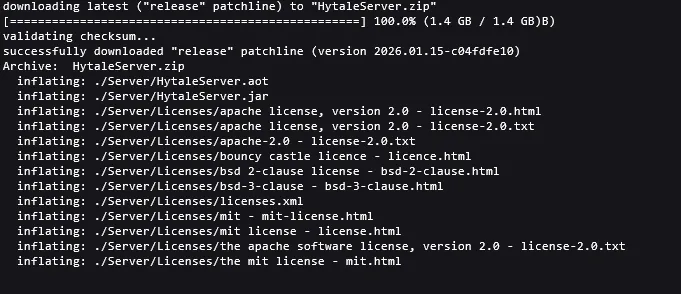
Note: You usually only need to do this on the very first startup or after a major update.
- Once server has started, you need to authenticate one last time.

Run this command in the console:
/auth login device
-
You will get a new code. Repeat steps 4-5 to complete the process.
-
After successful authentication, your server is ready, but the Token will expire after some time or due to server restart. To avoid interruptions, run the command below:
/auth persistence Encrypted

3. 🖥️ The Console & Power Controls
Section titled “3. 🖥️ The Console & Power Controls”The main dashboard is your command center.
- Power Controls: In the top right, you have buttons to
Start,Restart, andStop(or “Kill”) the server. - The Console: The black screen shows server activity in real-time. You can type admin commands directly into the text bar at the bottom.
- Connection Info: Your Server IP and Port are displayed here (e.g.,
192.168.1.1:25565). Share this with friends to join!
4. ⚙️ Configuring Your Server
Section titled “4. ⚙️ Configuring Your Server”Want to change the server name, game mode, or world seed? You can do this using the File Manager.
- Click the Files tab on the left sidebar.
- You will see a list of all server files (e.g. config.json).
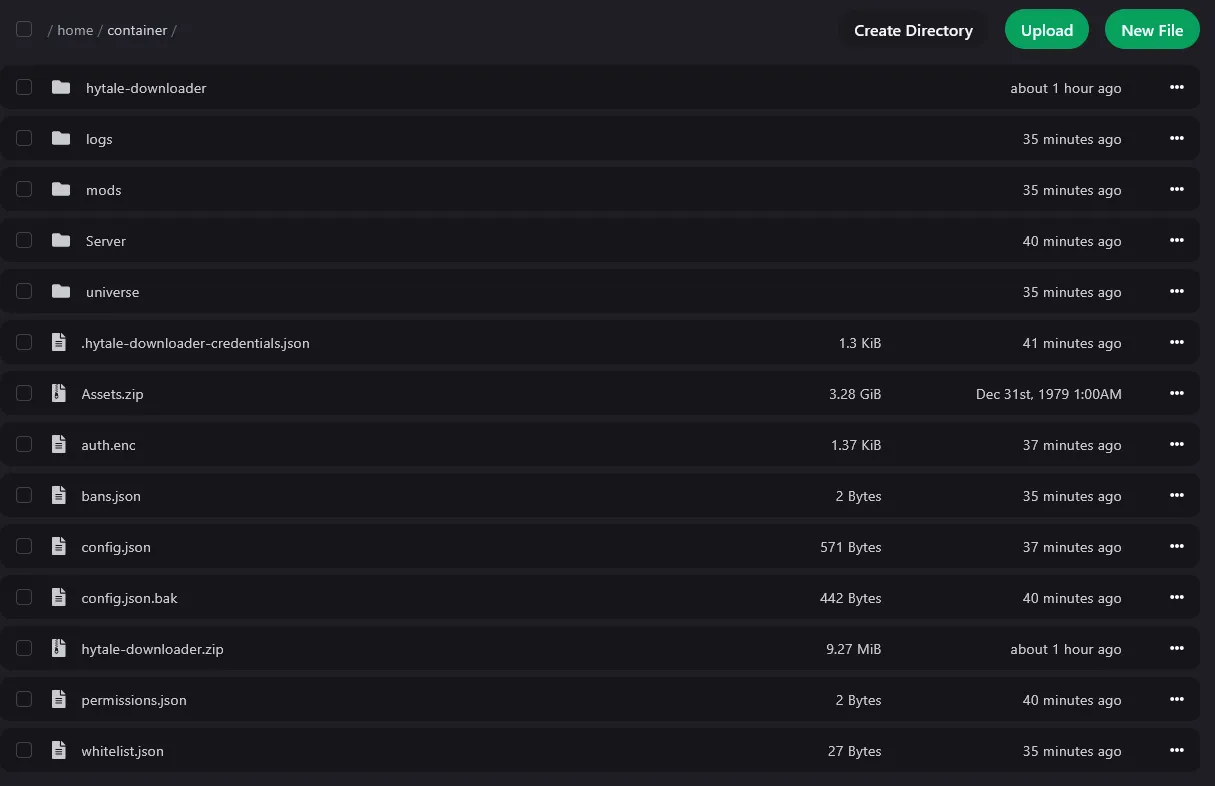
- Change the value you want.
- Restart the server for the changes to take effect.
5. 📂 Managing Files & Plugins
Section titled “5. 📂 Managing Files & Plugins”You have full access to your server’s files to add mods, plugins, or custom scripts.
Web Upload (Small files)
Section titled “Web Upload (Small files)”Go to File Manager -> Upload. Drag and drop configs or single plugins here.
SFTP (Large files)
Section titled “SFTP (Large files)”For uploading large worlds or modpacks, use a client like FileZilla.
- Go to the Settings tab to see your SFTP Host and Username.
- Use your panel password to log in via your SFTP client.
6. 🛡️ Creating Backups
Section titled “6. 🛡️ Creating Backups”Always run a backup before installing new scripts or updates.
- Click the Backups tab on the left.
- Click Create Backup.
- Name it something memorable (e.g., “Before Update v1.0”).
- If something breaks, click the … menu on the backup and select Restore.
🔧 Troubleshooting: “Authentication Failed”
Section titled “🔧 Troubleshooting: “Authentication Failed””If you see an “Auth Failed” or “Invalid Token” error during Step 2, try these fixes:
- Act Fast: The auth codes expire quickly (usually 2-5 minutes). If you waited too long, Restart the server to get a new code.
- Use Incognito: Sometimes browser cache interferes. Open the auth link in an Incognito/Private window.
- Check Account: Ensure you are logging into the Riot/Hytale account that actually owns the game license.
👋 Need Help?
Section titled “👋 Need Help?”If you get stuck or your server crashes unexpectedly, please open a support ticket!
Tip: Including a screenshot of your Console errors in the ticket helps us solve the issue much faster.